Chattalyst User Guide & Documentation
Operations
Last reviewed: 2026-11-17

Staff attendance shifts and reports

Enable attendance, define shift types, assign them on the monthly roster, and review clock-in reports for your team.

Prefer a visual walkthrough? Watch the video
platform.chattalyst.com · video walkthrough
Add a shift and view the attendance report

Overview & Architecture

Attendance lives under /dashboard/attendance (personal clock-in) and /dashboard/attendance/admin (report, roster, shifts, locations, settings). Create named shift types with start/end times and working days, assign them on the monthly roster (including bulk weekday repeat), then filter the report by date range to see records, late arrivals, and punch pairs. Locations provide optional geofences for clock-in range checks.

Prerequisites

  • Attendance module installed for your workspace
  • Permission to manage attendance (shift types, roster, and report filters)
  • At least one teammate profile in the workspace

Step-by-Step Instructions

1

Open Attendance admin

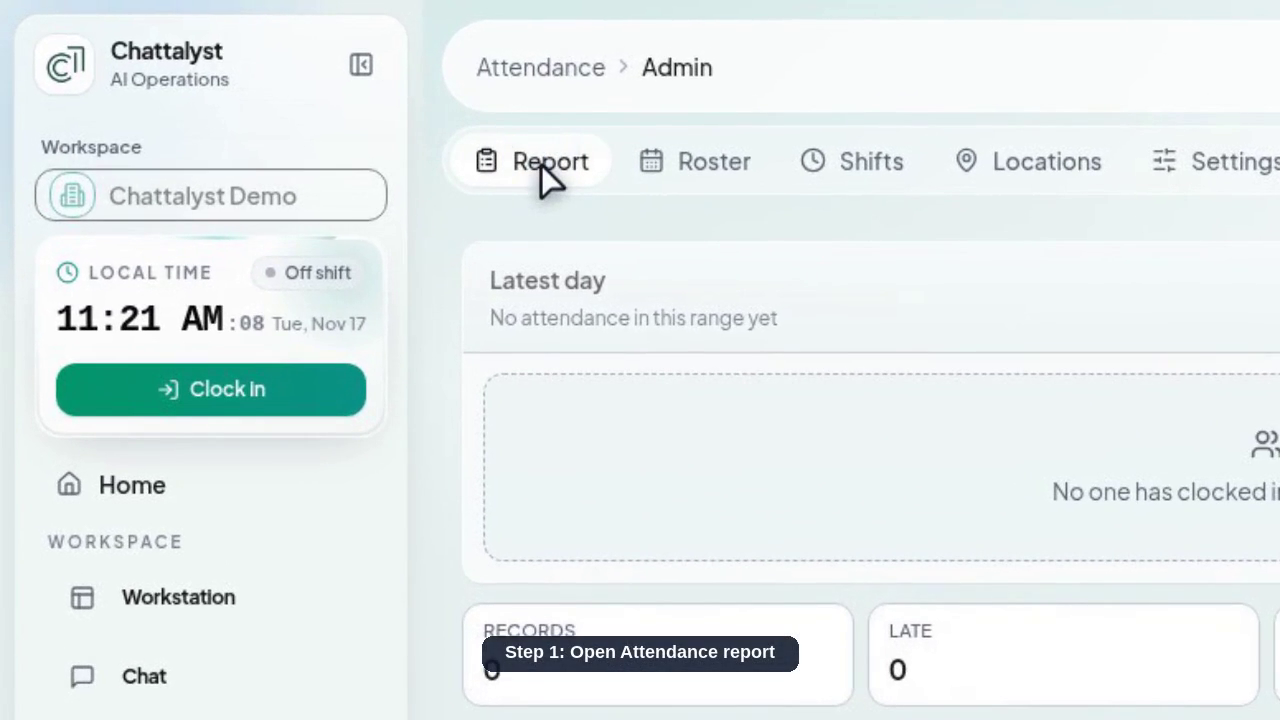
In the left navigation, open Attendance → Admin (or go to /dashboard/attendance/admin). Use the Report, Roster, Shifts, Locations, and Settings tabs.

2

Add a shift type

Open the Shifts tab and click Add shift. Enter a name (for example Morning clinic), set start and end times in the org timezone, choose working days, and click Save shift.

3

Assign the shift on the roster

Open the Roster tab. Click a day cell for a teammate, optionally turn on Apply to every matching weekday this month, then pick the shift. The roster chip updates for those days.

4

Review the attendance report

Open the Report tab. Use the date range control to select the period (for example the last ~14 days), click Apply, then review Records / Late totals and the punch table. See all opens the full roster list for that range.

Try this in your workspace

Open the relevant screen in your dashboard to follow along live.

Open in Chattalyst Platform

Frequently Asked Questions

Related Solutions & Guides

Chat with us